 AutoRelay QA
Browser QA assistant
Turn browser steps into test code.
Record browser workflows and turn them into Playwright or Selenium starter code.
A typical workflow
From a manual pass to a test draft
Record
Open a test page and capture clicks, inputs, and navigation. Add waits and assertions where the workflow needs them.
Refine
Edit steps, check locators, replay the flow, and review logs or screenshots when something fails.
Export
Generate a test draft and a Markdown prompt. Review both before using the code in your suite or sharing context with an AI assistant.
Capabilities
One extension, two workspaces
Open Studio for recorded flows. Right-click a page or the extension icon to reach the Page QA toolkit.
01 Studio
- Record and replay workflows
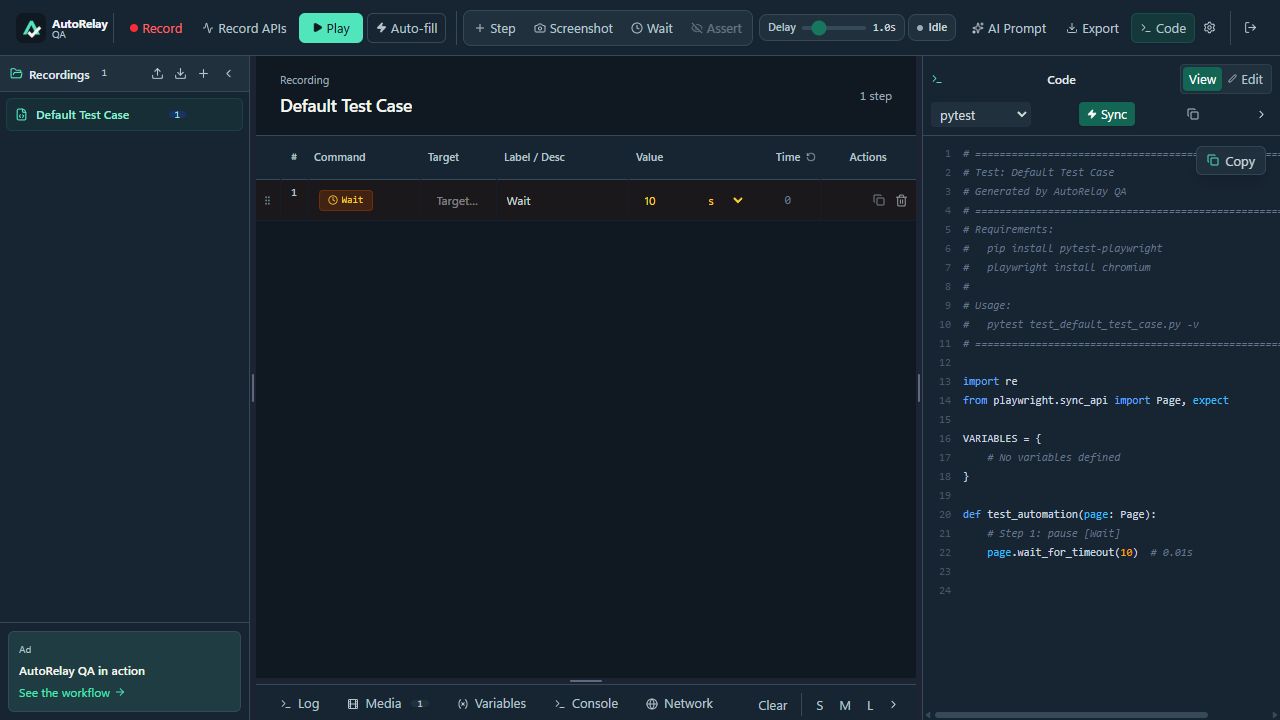
- Capture browser actions, edit or reorder steps, manage saved flows, set playback delay, and add visibility or text assertions. Run a saved flow from the extension icon and stop playback when needed.
- Generate code and AI context
- Export Playwright for JavaScript or Python, including Pytest, or Selenium for Python. Generate a Markdown handoff with steps, locators, and expected views. Import or export recordings as RCA or JSON.
- Debug and report
- Use API-only recording, network and console views, screenshots, and execution reports to investigate failures. Capture video or traces where supported.
- Repeat recorded data entry
- Edit recorded inputs, choose typing speed, and repeat a fill for a saved workflow.
02 Page QA toolkit
- Fill, remember, and shuffle
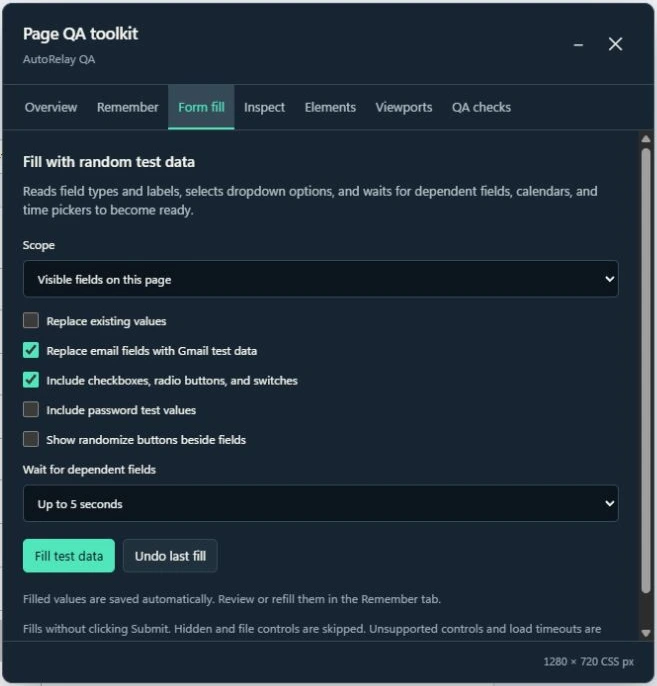
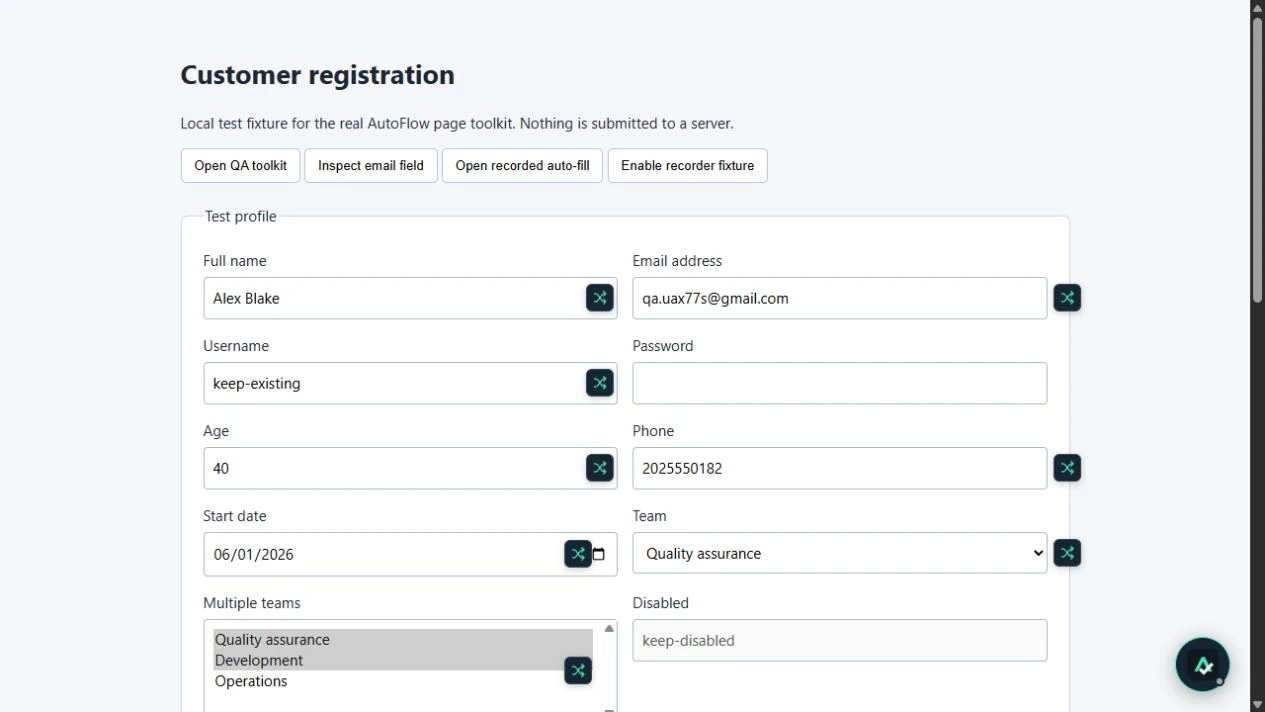
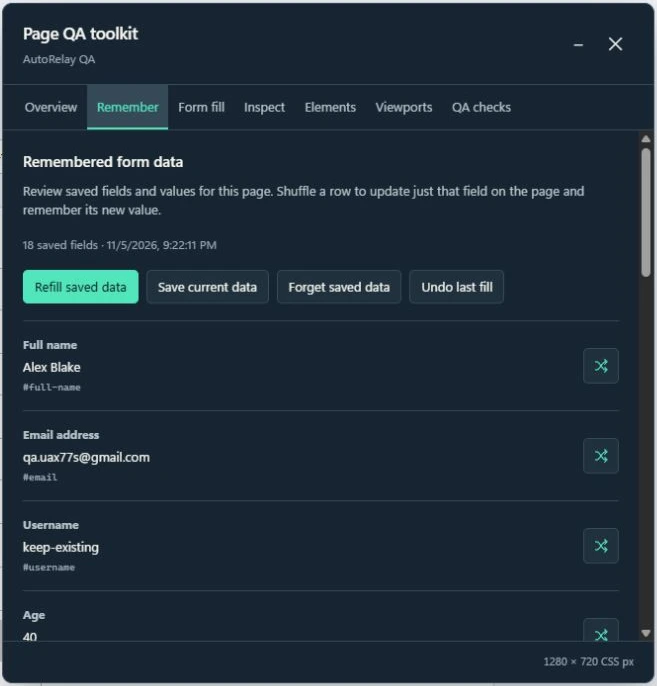
- Generate sample text, email, numbers, dates, and times. Pick available dropdown options, wait for dependent fields, and handle supported checkboxes, radio buttons, switches, and pickers. Refill saved values, shuffle one field, or undo a fill.
- Inspect and export elements
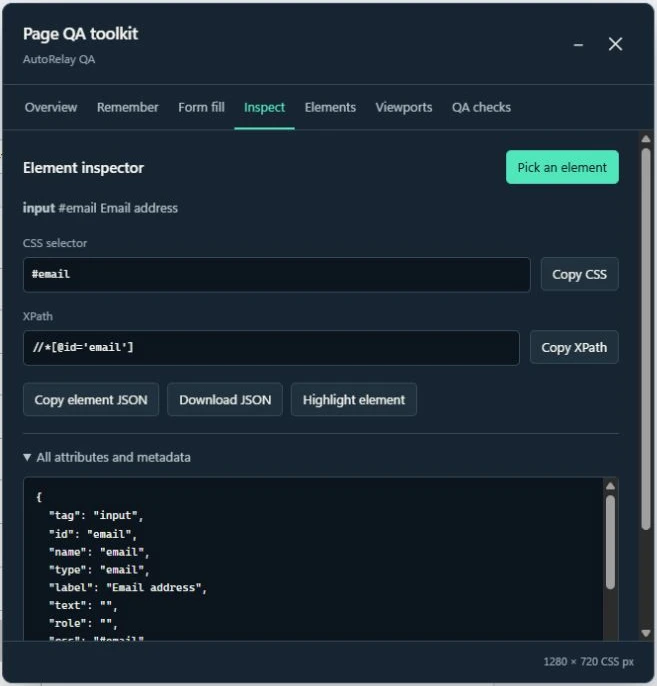
- Pick an element to inspect its CSS selector, XPath, role, attributes, and bounds. Export an inventory to JSON or CSV from the current frame and accessible open shadow roots.
- Preview and spot issues
- Open phone, tablet, desktop, or custom viewport sizes in a separate preview. Run quick checks for duplicate IDs, missing labels, broken images, and overflow, or capture a viewport screenshot.
- Keep the page in view
- Drag the toolkit out of the way or minimize it into the AutoRelay QA bubble. A running fill can continue while minimized.
Before you rely on a result
Keep a human in the loop.
What can autofill miss?
Custom controls, disabled inputs, hidden wizard steps, and protected frames can block a fill. Generated values may fail business rules or server validation. Check the results on a test environment.
Can the quick checks replace an audit?
Quick checks flag a handful of visible page issues. Full accessibility, security, cross-browser, and regression coverage still need dedicated testing. A viewport preset approximates screen size and touch behavior, not a real device or browser engine.
Is generated code ready for CI?
Treat it as starter code. Run it against your app, verify the locators and waits, and add meaningful assertions, test data setup, and cleanup before adding it to CI.
What should I review before sharing an export?
Recordings, reports, screenshots, and locator inventories may contain page content or entered values. Remove private data before sharing files or giving them to an AI assistant.
- Open the extension in Chrome or a compatible Chromium browser.
- Visit a test page and choose Page QA toolkit from its right-click menu.
- Open Studio to record a workflow and generate a test draft.
Support AutoRelay QA
Help fund ongoing development with a voluntary contribution.